Create an Event
Start from home by clicking the Pursuit Path Logo on the top left.
Then, click on the 'Events' menu item on the vertical menu on the left.
At the top right click on 'Add New Event'
The 'Add New Event' screen will appear
Event Design
Select either an available Game or your Created Game that you would like to play.

If you have not created your game, refer to the article "Create Your Game".
Select the date period that you would like to start and end your event.

This is useful if you want to prepare the event for your players before, but you do not want them to access the event.
Click on "Next" to proceed.
Event Type
Name of the Event
Put in the name for your event. This will be shown on the event page for easy recognition.
Client Logo
Attach a Client Logo over here. This logo will be shown on the top left corner of the player's screen.
If you have an unique logo that represents your team, you can attach it over here.
Company Logo
Attach a Company Logo over here. This logo will be shown on the top right corner of the player's screen.
If you have an unique logo that represents your organisation, you can attach it over here.
Click on "Next" to proceed.
Event URL
Input a Unique Link Name for your Event
The Event Link, Leaderboard Link and Participant File Link will appear. You should copy the links down into somewhere safe.
The Event Link is the main access link to the event.
The Leaderboard Link is the link to show the scores of the different teams.
The Participant File Link will display all the photos and videos that were uploaded during the event.
Click on "Finish" to proceed.
Event Created Successfully
Your have successfully created your Event!
"Go to Event Manager" will bring you into the Event Page. You will see all your Events that are created.
"Follow Event Link" will link to the start of your Event Play Screen.
"Generate Code" will bring you to the Code Generation Page, where you can create different codes for different teams to join the game.
You will need at least 1 code to start 1 game.
Events Page
Once you have Events created, they will be displayed over here.
The Green Rocket Icon will bring you to the start of your Event Play Screen.
The Eye Icon will bring you to the Event Details Page.
The Copy Icon will allow you to duplicate the same Event.
The Pencil Icon will bring you to the Edit Event Page.
The Bin Icon will delete your Event.
In order to start your Event, you will need to switch on "Live Event" beside your Event, and create codes for team play in the Event Details Page.

If you are still on a free plan, you can only "Live" one event at any single time.
Edit Event Page
This page allows you to change the Event Design and Event Type details that you had put in.
Change Game
The Game can be changed here
Change Date Period
The Date Period can be changed here
Change Name of Event
The name of the event can be changed here
Change Logos
The client logo and company logo can be changed here
Change Event URL
The Event URL can be changed here. Once there are changes, the Event Link, Leaderboard Link and Participant file Link will be updated.
Click on "Update" to save your changes.
Events Detail Page
Details
All details for your event are displayed here.
Close This Event
This is to close the Event if you don't require it anymore.
Update This Event
Clicking on it will bring you to the "Edit Event" Page.
Duplicate This Event
This will duplicate the exact same event, which will display in the Events Page
Event URL
All the important links are displayed over here to copy them.
Event Code
You can create event codes here to start your Events.
Click on "Add New Code" to start creating codes.
Each code will start a different team, hence you should create as many codes as you require accordingly to the teams that you have
If you are on a free plan, you can create a maximum of 3 codes.
Once you have created the codes, you will need to switch the Events to "Live" before the Event will start
Add New Code
You can choose to generate a single code, or generate multiple codes
Single Code
You can copy your code from here
Date Period
Choose your start date, and your end date for your code
Notes
Leave a note for your code
Click on "Save Code" to save your code
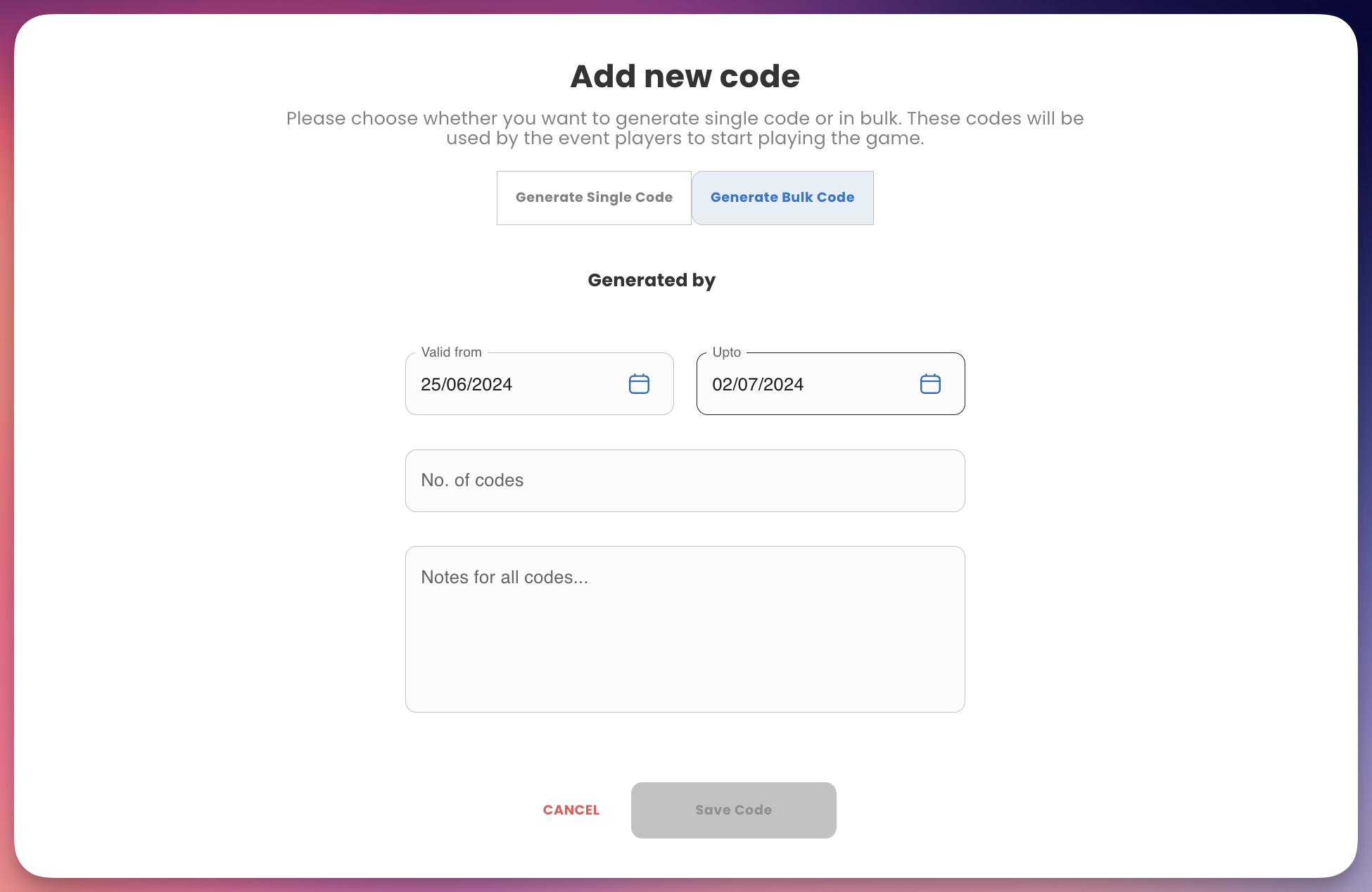
Multiple Codes
Date Period
Choose your start date, and your end date for your code
Number of Codes
Choose the number of codes that you need
Notes
Leave a note for your code
Click on "Save Code" to save your code
You can now start your event by sending the Event Link and Event Codes to the players.
You can now start your event by sending the Event Link and Event Codes to the players.
Related Articles
Downloading Event Media
There are 3 methods to download event media. Method 1 - Download event media using the generated Participant Files Link To copy the Participant Files link, refer to the Knowledge Base "Create a Game" to find all the locations of the link The ...Quick Start Guide
This guide will help you quickly get started with creating challenges, games, and events using Pursuit Pt 1. Creating a Challenge Navigate to Challenges: Start from the home screen by clicking the Pursuit Path logo at the top left. Click on the ...What is a team passcode? Do my participants need them?
What is the difference between a password and a team passcode? A password is a password that allows a user to log in onto the admin panel and change the details of the challenges, games and events. While a passcode is like a password for joining a ...How many device can join a team?
Is there a limit on the number of devices that can join a team? There are no limitations to the number of devices that can connect to a team Is there a recommended number of participants/devices that should join a team? It is strongly recommended ...Viewing of Leaderboard
There are 3 methods to view the Leaderboard. Method 1 - Viewing the Leaderboard using the generated Leaderboard Link To copy the Leaderboard link, refer to the Knowledge Base "Create a Game" to find all the locations of the link The Leaderboard Link ...